 Dando
Install Dando on iPhone and set up protection
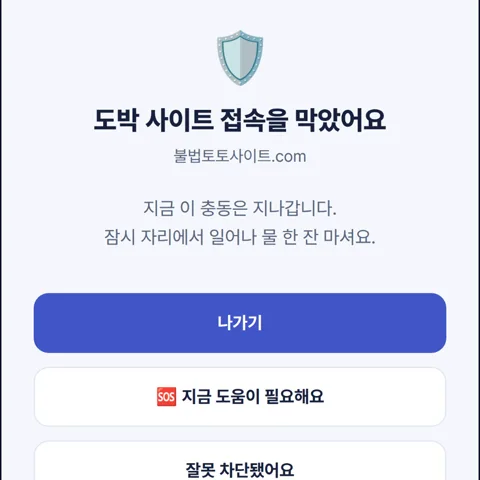
Turn on protection in 3 steps
- Install Dando from the App Store and sign in.
- Tap [Start protection] on Home and allow the VPN configuration.
- Turn on the Safari extension and finish the remaining items on Home.
Updated
Follow the steps for App Store installation, sign-in, VPN protection, Safari extension, additional settings, guardian connections and network checks.
- Install Dando for iPhone from the App Store and sign in.
- Start protection from Home and allow the iOS VPN configuration request.
- Set up Safari and supported additional protections, then check the protection status.
1. Install from the App Store
Use the official App Store button below. Check the listing for compatible iOS versions. Android APKs and PC installers do not install on iPhone.
2. Sign in and start VPN protection
Create an account or sign in, then start protection from Home. Follow the app instructions and allow the iOS request to add a VPN configuration. Installing or signing in alone does not turn protection on.
3. Enable the Safari extension
Open Settings → Apps → Safari → Extensions → Dando. Enable the extension and check website access permissions. Earlier iOS versions place Safari directly in Settings. Check each Safari profile you use.
The extension supplements page checks in Safari. Its features do not automatically apply to Chrome or browsers inside other apps.
4. Review additional protection and consent
Follow the Home prompts for supported settings such as Screen Time locking and web filtering. Available items depend on iOS and app settings.
Additional site analysis is optional and requires separate consent. Read its data-handling scope before choosing. You can still check the status of basic DNS and existing-list protection without opting in.
5. Choose connections and release settings
Use protection connections in the all menu to connect with another user or a trusted guardian. Approval or a waiting period applies according to the connection and lock settings. Visited URLs and search history are not shared with guardians.
6. Make app deletion harder
1) Do this together with a family member or friend you trust.
2) Settings → Screen Time → 'Lock Screen Time Settings', and let that person choose the passcode.
3) Settings → Screen Time → Content & Privacy Restrictions → On → iTunes & App Store Purchases → Deleting Apps → 'Don't Allow'.
Without the passcode you cannot delete Dando or turn off its Screen Time access on your own. This also stops other apps from being deleted. Once a release is approved, ask that person to undo it.
7. Check Wi-Fi and mobile data
Check protection and unfinished settings on Home. Check again after switching between Wi-Fi and mobile data or restarting your iPhone. Other VPN or DNS settings may affect coverage.
For connection or setup problems, contact support with the iPhone model, iOS and app versions, time and error text. Hide personal information in screenshots.
Sources & further reading
- Apple: Safari extensions on iPhone
Apple · 2026
Frequently asked questions
Does installation alone start blocking?
No. Sign in, start protection and finish the required setup. Check the Home status.
Are other browsers protected?
DNS protection applies to connections using the protected resolver. Safari extension checks are specific to Safari; coverage depends on iOS, browser and network settings.
What if internet access stops after setup?
Check the Home status, error text and other VPN or DNS settings, then contact support. Check protection on both Wi-Fi and mobile data.